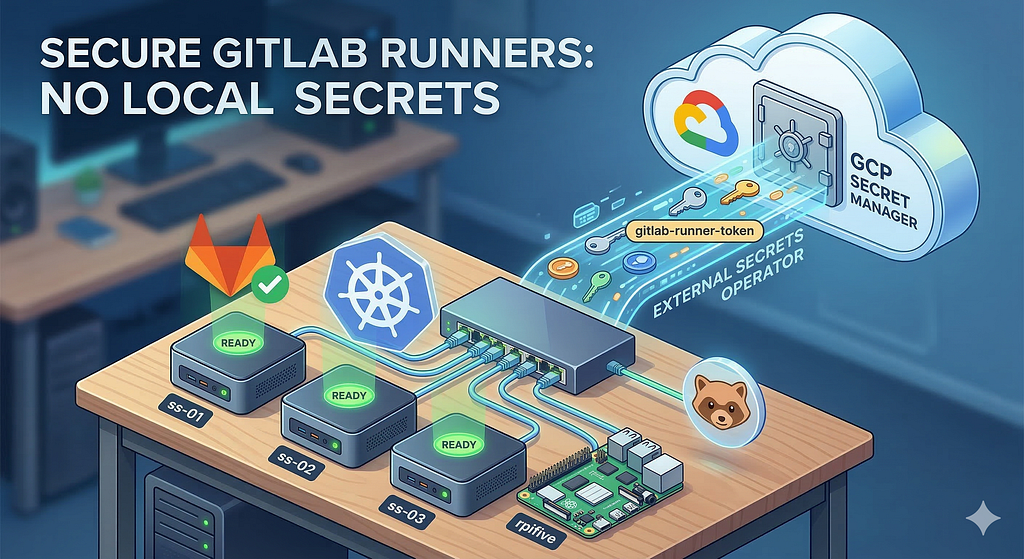
A complete guide to running GitLab CI/CD on your homelab Kubernetes cluster without ever putting a secret in a file.
I run a 4-node Kubernetes cluster at home. Three x86 mini PCs and a Raspberry Pi 5, all sitting behind a consumer switch on my desk. It runs my CI/CD pipelines, builds my containers, and will eventually serve my apps.
But here’s the thing — there are zero secrets stored on any of those machines. No tokens in config files. No credentials in Kubernetes Secrets manifests. No .env files tucked away in home directories. Every secret my cluster needs is pulled at runtime from GCP Secret Manager by the External Secrets Operator.
This post walks through the entire setup: the architecture decisions, a step-by-step build guide, the things you need to get exactly right, and a troubleshooting section for when things go sideways — because they will.
The Architecture
Before we get into commands, let’s talk about why things are set up this way.
Hardware
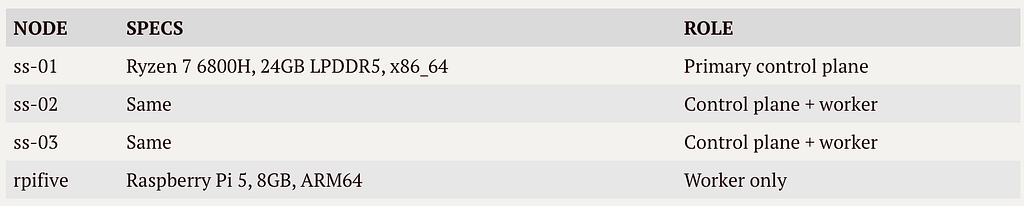
The three x86 nodes form an HA control plane using MicroK8s’s built-in Dqlite datastore. The Pi joins as a worker — it contributes compute without participating in consensus. Dqlite wants an odd number of voters, and three is the sweet spot.
The Core Principle: Stateless Cluster, Cloud State
The local cluster handles one thing: compute. It runs workloads, builds containers, executes pipelines. That’s it.
All state lives in GCP:
- Secrets → GCP Secret Manager
- Databases → Cloud SQL (when needed)
- Object storage → GCS (when needed)
- Container images → MicroK8s local registry for dev, GCR/Artifact Registry for prod
Why? Because a homelab cluster will break. Power outages, bad upgrades, experimental configs that go wrong. When my cluster dies — and it has — I want to microk8s reset on all nodes, rebuild in 20 minutes, and have everything work again. No data lost, no secrets to recreate, no state to reconstruct.
The GCP free tier covers Secret Manager comfortably for a homelab. You get 10,000 access operations per month free, and a small project won’t come close to that.
Why Not Vault?
HashiCorp Vault is the standard answer for Kubernetes secrets management. It’s also a stateful application that needs its own storage backend, unsealing process, HA configuration, and operational attention.
For a homelab? That’s over-engineering. GCP Secret Manager is a managed service. It’s always available, it handles encryption, it has versioning, and it costs nothing at this scale. Combined with the External Secrets Operator, it gives you the same end result — secrets synced into Kubernetes automatically — without running another piece of infrastructure.
Why GitLab SaaS + Runner, Not Self-Hosted GitLab?
Same logic. Self-hosted GitLab needs state: a PostgreSQL database, object storage for artifacts, Redis for caching. That’s a lot of infrastructure to maintain when gitlab.com’s free tier gives you everything you need. The only thing you run locally is the runner — the lightweight agent that picks up jobs and executes them in your cluster.
The Secret Flow
Here’s how a secret gets from GCP to a running pod in the cluster:
GCP Secret Manager
        │
        │  (API call over HTTPS)
        │
External Secrets Operator (ESO)
        │
        │  (creates/updates)
        │
Kubernetes Secret
        │
        │  (mounted as volume)
        │
GitLab Runner PodCode language: JavaScript (javascript)- You store a secret in GCP Secret Manager (e.g., a GitLab runner authentication token).
- A GCP service account with secretmanager.secretAccessor permission has a JSON key loaded into the cluster as a Kubernetes Secret.
- ESO’s ClusterSecretStore uses that key to authenticate with GCP.
- An ExternalSecret resource tells ESO: “Pull the secret called gitlab-runner-token from GCP and create a Kubernetes Secret with specific keys.”
- ESO polls GCP on a refresh interval (e.g., every hour) and keeps the Kubernetes Secret in sync.
- The GitLab Runner pod mounts that Kubernetes Secret and uses it to authenticate with gitlab.com.
The only manual step involving a credential is creating the GCP service account key and loading it into the cluster once. After that, everything is automated.
Step-by-Step Setup
Prerequisites
- 1+ machines with MicroK8s installed (snap install microk8s — classic — channel=1.33/stable)
- A GCP account with a project
- A GitLab account (free tier works)
- gcloud CLI authenticated on your local machine
- SSH access to all nodes
Step 1: Form the HA Cluster
Start on your primary node (ss-01 in my case):
# Verify MicroK8s is running on all nodes
microk8s statusCode language: PHP (php)
Generate a join token and join each node one at a time:
# On ss-01: generate token
sudo microk8s add-node

# On ss-02: join with the provided command
sudo microk8s join 192.168.0.121:25000/<token>

# Repeat for ss-03 and any additional nodes
sudo microk8s add-node  # run on ss-01 again
# Join from ss-03...

sudo microk8s add-node  # run on ss-01 again
# Join from rpifive...Code language: PHP (php)
Verify the cluster:
kubectl get nodesCode language: JavaScript (javascript)You should see all nodes as Ready. Check HA status:
microk8s status | head -5You want to see high-availability: yes with your x86 nodes listed as datastore masters.
Note on mixed architectures: If you’re mixing x86 and ARM nodes like I am, MicroK8s handles this fine for the control plane. Just be mindful of image architectures when deploying workloads — you’ll need multi-arch images or node affinity rules.
Step 2: Enable Addons
DNS first — other addons depend on it:
sudo microk8s enable dnsThen the rest, one at a time (the chained form works but is deprecated):
sudo microk8s enable rbac
sudo microk8s enable metrics-server
sudo microk8s enable registry
sudo microk8s enable hostpath-storage
sudo microk8s enable ingress
sudo microk8s enable cert-manager
The API server will restart during DNS and RBAC enablement. You’ll see “connection refused” errors in the output — these are normal and the enable script retries automatically.
Verify everything is running:
kubectl get pods -ACode language: JavaScript (javascript)All pods should be Running with no restarts.
Step 3: Set Up GCP
Create a project (or use an existing one):
gcloud projects create your-project-id --name="Your Project"Code language: JavaScript (javascript)Enable the Secret Manager API:
gcloud services enable secretmanager.googleapis.com --project=your-project-idCreate a service account for ESO:
gcloud iam service-accounts create eso-sa \
  --display-name="External Secrets Operator" \
  --project=your-project-idCode language: JavaScript (javascript)
Grant it access to read secrets:
gcloud projects add-iam-policy-binding your-project-id \
  --member="serviceAccount:[email protected]" \
  --role="roles/secretmanager.secretAccessor"Code language: JavaScript (javascript)
Important: If your GCP organization has the iam.disableServiceAccountKeyCreation constraint enabled, you’ll need to reset it at the org level before creating the key:
gcloud resource-manager org-policies reset iam.disableServiceAccountKeyCreation \
  --organization=YOUR_ORG_ID
Step 4: Store Your GitLab Runner Token in GCP
Create a group-level runner in GitLab (Group → Settings → CI/CD → Runners) and copy the authentication token.
Store it in GCP Secret Manager:
echo -n "glrt-YOUR_RUNNER_TOKEN" | gcloud secrets create gitlab-runner-token \
  --data-file=- \
  --project=your-project-idCode language: PHP (php)
Step 5: Create the GCP Service Account Key and Load It Into the Cluster
# On your local machine (where gcloud is authenticated)
gcloud iam service-accounts keys create eso-sa-key.json \
  [email protected]

# Copy to your primary K8s node
scp eso-sa-key.json raveesh@ss-01.local:~/

# Delete the local copy immediately
rm eso-sa-key.jsonCode language: PHP (php)
On your primary node:
# Create the namespace
kubectl create namespace external-secrets

# Create the secret from the key file
kubectl create secret generic gcp-infra-credentials \
  --from-file=key.json=/home/raveesh/eso-sa-key.json \
  --namespace=external-secrets

# Delete the key file from the node
rm ~/eso-sa-key.json
The JSON key now exists only inside Kubernetes as a Secret. It’s not on any filesystem.
Step 6: Install External Secrets Operator v2
sudo microk8s helm repo add external-secrets https://charts.external-secrets.io
sudo microk8s helm repo update
sudo microk8s helm install external-secrets \
  external-secrets/external-secrets \
  --namespace external-secrets \
  --set installCRDs=trueCode language: JavaScript (javascript)
Wait for all pods to be ready:
kubectl get pods -n external-secrets -wCode language: JavaScript (javascript)You need three pods running: external-secrets, external-secrets-cert-controller, and external-secrets-webhook.
Critical: Verify the ExternalSecret CRD was actually installed:
kubectl get crd externalsecrets.external-secrets.ioCode language: CSS (css)If this returns NotFound, the CRD didn’t install properly. Fix it with:
sudo microk8s helm upgrade external-secrets \
  external-secrets/external-secrets \
  --namespace external-secrets \
  --set installCRDs=true \
  --forceCode language: JavaScript (javascript)
More on this in the Troubleshooting section.
Step 7: Create the ClusterSecretStore
cat << 'EOF' | kubectl apply -f -
apiVersion: external-secrets.io/v1
kind: ClusterSecretStore
metadata:
  name: gcp-infra
spec:
  provider:
    gcpsm:
      projectID: your-project-id
      auth:
        secretRef:
          secretAccessKeySecretRef:
            name: gcp-infra-credentials
            key: key.json
            namespace: external-secrets
EOFCode language: PHP (php)
Verify it’s healthy:
kubectl get clustersecretstore gcp-infraCode language: JavaScript (javascript)You want STATUS: Valid and READY: True.
Step 8: Create the GitLab Runner Namespace and ExternalSecret
kubectl create namespace gitlab-runner

cat << 'EOF' | kubectl apply -f -
apiVersion: external-secrets.io/v1
kind: ExternalSecret
metadata:
  name: gitlab-runner-token
  namespace: gitlab-runner
spec:
  refreshInterval: 1h
  secretStoreRef:
    name: gcp-infra
    kind: ClusterSecretStore
  target:
    name: gitlab-runner-token
    creationPolicy: Owner
  data:
    - secretKey: runner-registration-token
      remoteRef:
        key: gitlab-runner-token
    - secretKey: runner-token
      remoteRef:
        key: gitlab-runner-token
EOFCode language: JavaScript (javascript)
Notice that we map the same GCP secret to two different keys — runner-registration-token and runner-token. The GitLab Runner Helm chart mounts both keys as a projected volume, and Kubernetes projected volumes fail if any referenced key is missing, even if the application only uses one. This is a gotcha that will have you debugging for a while if you don’t know about it.
Verify the secret synced:
kubectl get externalsecret -n gitlab-runner
# STATUS should be SecretSynced

kubectl get secret gitlab-runner-token -n gitlab-runner
# Should show DATA: 2Code language: PHP (php)
Step 9: Install the GitLab Runner
sudo microk8s helm repo add gitlab https://charts.gitlab.io
sudo microk8s helm repo update

sudo microk8s helm install gitlab-runner gitlab/gitlab-runner \
  --namespace gitlab-runner \
  --set gitlabUrl=https://gitlab.com \
  --set runners.secret=gitlab-runner-token \
  --set rbac.create=true \
  --set serviceAccount.create=true \
  --set runners.executor=kubernetes \
  --set 'runners.config=[[runners]]
  request_concurrency = 2
  [runners.kubernetes]
    namespace = "gitlab-runner"
    image = "alpine:3.19"
    privileged = true
    cpu_limit = "2"
    memory_limit = "4Gi"
    cpu_request = "500m"
    memory_request = "512Mi"'Code language: JavaScript (javascript)
Note that we set request_concurrency = 2 directly in the config template. The Helm value runners.requestConcurrency doesn’t always map correctly into the generated config, so providing it inline is more reliable.
Verify the runner is working:
kubectl get pods -n gitlab-runner
kubectl logs -n gitlab-runner -l app=gitlab-runner --tail=15Code language: JavaScript (javascript)
You want to see:
- Verifying runner… is valid
- Runner registered successfully
- Configuration loaded
- No “Long polling issues detected” warning
Check your GitLab group’s runner settings page — the runner should show as online.
Things You Need to Get Right
This setup has several moving parts. Here’s a checklist of things that need to be exactly right for everything to work.
GCP Side
- Secret Manager API must be enabled on your project. It’s not enabled by default.
- The service account needs roles/secretmanager.secretAccessor — not secretmanager.admin, not viewer. The accessor role is the minimum required to read secret values.
- Org policy for SA key creation: If your GCP organization restricts service account key creation (iam.disableServiceAccountKeyCreation), you need to reset this policy before generating the key. This is common in organizations that prefer Workload Identity Federation.
- The secret value in GCP must be the raw token, not JSON-wrapped. When you create it with echo -n “glrt-…” | gcloud secrets create …, the -n flag prevents a trailing newline, which would break authentication.
Kubernetes Side
- ESO CRDs must actually be installed. ESO v2 (chart version 2.x) has a known issue where the ExternalSecret CRD may not install on the first helm install even with installCRDs=true. Always verify with kubectl get crd externalsecrets.external-secrets.io after installation.
- The ESO webhook pod must be running before you create a ClusterSecretStore. The webhook validates the resource, and if it’s not ready, you’ll get a “connection refused” error. Wait for all three ESO pods to be 1/1 Running.
- The GCP credentials secret must be in the same namespace as ESO (typically external-secrets). The ClusterSecretStore references it by namespace, so a mismatch will cause silent failures.
- The –from-file flag doesn’t expand ~. Use the full absolute path when creating secrets from files: –from-file=key.json=/home/raveesh/eso-sa-key.json, not –from-file=key.json=~/eso-sa-key.json.
GitLab Runner Side
- The Kubernetes Secret must have both runner-token and runner-registration-token keys. The Helm chart’s projected volume references both. If either is missing, the pod will be stuck in ContainerCreating with a FailedMount error. Map the same GCP secret to both keys in your ExternalSecret.
- Runner config must be provided inline for full control. The runners.requestConcurrency Helm value doesn’t always propagate into the config template. Use runners.config with a raw TOML block to set things like request_concurrency, resource limits, and the runner image directly.
- Privileged mode is required if your CI jobs need to build Docker images (docker-in-docker). Set privileged = true in the runner kubernetes config. Be aware of the security implications — privileged containers can access the host.
- Clean up old ReplicaSets after Helm upgrades. Multiple helm upgrade cycles can leave orphaned ReplicaSets that create duplicate runner pods, each registering with GitLab separately. Check with kubectl get rs -n gitlab-runner and ensure only one has DESIRED > 0.
Troubleshooting Guide
ESO: ExternalSecret CRD Not Found
Symptom: kubectl apply of an ExternalSecret returns:
the server could not find the requested resource (post externalsecrets.external-secrets.io)Code language: CSS (css)Cause: The externalsecrets.external-secrets.io CRD wasn’t installed despite installCRDs=true. This is an ESO v2 issue.
Fix:
# Verify it's missing
kubectl get crd externalsecrets.external-secrets.io

# Force reinstall with CRDs
sudo microk8s helm upgrade external-secrets \
  external-secrets/external-secrets \
  --namespace external-secrets \
  --set installCRDs=true \
  --force

# Verify it exists now
kubectl get crd externalsecrets.external-secrets.io
ESO: ClusterSecretStore Webhook Connection Refused
Symptom:
failed calling webhook "validate.clustersecretstore.external-secrets.io": connection refusedCode language: CSS (css)Cause: The ESO webhook pod isn’t ready yet. It takes a few seconds after pod startup for the webhook endpoint to become available.
Fix: Wait for all ESO pods to be ready, then retry:
kubectl get pods -n external-secrets -w
# Wait for all 3 pods to show 1/1 Running, then retry your applyCode language: PHP (php)
GitLab Runner: Stuck in ContainerCreating
Symptom: Runner pod stays in ContainerCreating. Describe shows:
MountVolume.SetUp failed for volume "projected-secrets": references non-existent secret key: runner-tokenCode language: JavaScript (javascript)Cause: The Kubernetes Secret created by ESO is missing one of the two keys the Helm chart expects (runner-token or runner-registration-token).
Fix: Update your ExternalSecret to map both keys:
data:
  - secretKey: runner-registration-token
    remoteRef:
      key: gitlab-runner-token
  - secretKey: runner-token
    remoteRef:
      key: gitlab-runner-token
Then delete the pod to trigger a remount:
kubectl delete pod -n gitlab-runner -l app=gitlab-runnerCode language: JavaScript (javascript)GitLab Runner: Long Polling Warning
Symptom:
WARNING: CONFIGURATION: Long polling issues detected.
Request bottleneck: 1 runners have request_concurrency=1
Cause: The default request_concurrency is 1, and the Helm value for it doesn’t always map into the config template.
Fix: Set it inline in runners.config:
--set 'runners.config=[[runners]]
  request_concurrency = 2
  [runners.kubernetes]
    namespace = "gitlab-runner"
    image = "alpine:3.19"'Code language: JavaScript (javascript)
API Server Connection Refused During Addon Enable
Symptom: While enabling addons like DNS or RBAC:
The connection to the server 127.0.0.1:16443 was refusedCode language: CSS (css)Cause: Normal. The API server restarts when these addons modify its configuration. The enable script retries automatically.
Fix: No fix needed. Wait for the enable command to complete. If it reports the addon is enabled at the end, you’re good.
Duplicate Runner Pods After Helm Upgrades
Symptom: Two runner pods running, both registering with GitLab, causing duplicate runners.
Cause: A Helm upgrade created a new ReplicaSet, but the old one’s pod wasn’t fully terminated.
Fix:
# Check ReplicaSets
kubectl get rs -n gitlab-runner

# The old one should show DESIRED=0. If not, delete the old pods:
kubectl delete pod <old-pod-name> -n gitlab-runnerCode language: PHP (php)
ExternalSecret Shows SecretSynced but Secret Has Wrong Data
Symptom: The ExternalSecret status is SecretSynced and Ready: True, but the runner can’t authenticate.
Cause: Usually a trailing newline in the GCP secret value, or the token format is wrong.
Fix:
# Check what's actually in the secret
kubectl get secret gitlab-runner-token -n gitlab-runner -o jsonpath='{.data.runner-token}' | base64 -d | cat -A

# The output should be your token with no trailing characters.
# If you see a `$` at the end, that's just cat showing end-of-line — that's fine.
# If you see `^M` or extra whitespace, recreate the GCP secret:
echo -n "glrt-YOUR_TOKEN" | gcloud secrets versions add gitlab-runner-token --data-file=-Code language: PHP (php)
What’s Next
This setup gives you a working GitLab CI/CD runner on a local Kubernetes cluster with secrets managed entirely through GCP. From here, the natural next steps are:
- Cloudflare Tunnels for exposing services externally without opening ports
- Workload Identity Federation to eliminate the service account JSON key entirely
- An infra GitLab repo with all manifests version-controlled
- Reloader for automatic pod restarts when secrets rotate
The key takeaway: keep your homelab cluster stateless and disposable. Let cloud services handle the state. When things break — and they will — you want a 20-minute rebuild, not a weekend of data recovery.
Built with three SkullSaints CoreX Pro mini PCs, a Raspberry Pi 5, and more kubectl describe commands than I’d like to admit.
Secure GitLab Runners on a Local 4-Node K8s Cluster Through GCP Secret Manager and External Secrets… was originally published in Dev Genius on Medium, where people are continuing the conversation by highlighting and responding to this story.
Leave a Reply